LinkedIn — Complete Help Guide (Step-by-Step)
Below is a detailed, practical walkthrough for the most common LinkedIn issues.
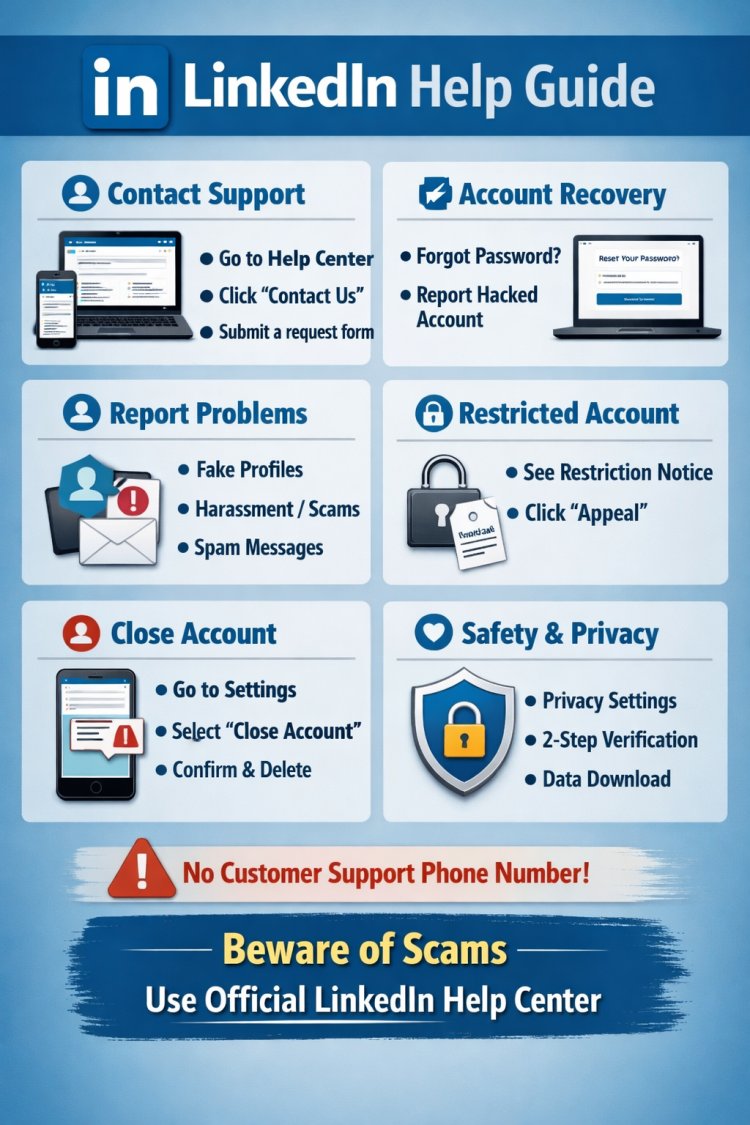
How to Contact LinkedIn Support (General Issues)
On Desktop
-
Go to linkedin.com
-
Click your Profile picture (top right)
-
Click Help
-
Select Help Center
-
Scroll down and click Contact us
-
Choose your issue category
-
Fill out the form and submit
On Mobile App
-
Open the LinkedIn app
-
Tap your Profile picture
-
Tap Settings
-
Scroll to Help Center
-
Select your issue
-
Tap Contact us
You’ll receive responses in:
-
Email
-
Or LinkedIn Support Inbox

Account Recovery (Forgot Password / Can't Log In)
Forgot Password
-
Go to login page
-
Click Forgot password?
-
Enter email or phone number
-
Click Reset password
-
Check email for reset link
-
Create new password
If Your Account Is Hacked
-
Select “My account has been compromised”
-
Fill out identity verification form
-
Upload requested ID (if asked)
-
Wait for response (usually 1–5 days)
Change password on your email too.
Reporting Fake Profiles, Harassment, or Scams
Report a Profile
-
Go to the person’s profile
-
Click More (⋯)
-
Select Report/Block
-
Choose reason (fake account, harassment, spam)
-
Submit
Restricted or Suspended Account
If LinkedIn restricted your account:
-
Try logging in
-
You’ll see a restriction notice
-
Click Appeal
-
Submit requested documents
-
Wait for review
Common reasons:
-
Using automation tools
-
Sending too many connection requests
-
Fake information
-
Violating community policies

Deleting or Closing Your LinkedIn Account
-
Click Profile picture
-
Go to Settings & Privacy
-
Click Account Preferences
-
Select Close account
-
Choose reason
-
Confirm password
-
Submit
You have 14 days to reopen it.
LinkedIn Premium Support
If you have Premium:
-
Go to Help Center
-
Select Contact us
-
Premium members may get:
-
Faster response
-
Live chat (when available)
-
Follow cyberdeepakyadav.com on
Facebook, Twitter, LinkedIn, Instagram, and YouTube
What's Your Reaction?